Author: morganlefey1119@gmail.com

  • Module # 9 assignment: Multivariate Visualization

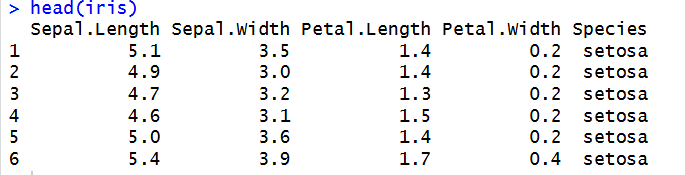
    For this assignment, we are asked to create a multivariate graph, which shows relationships between more than 2 variables. I decided to use RStudios iris dataset, which contains observations of 3 species of iris flowers. It contains 150 observations, and each records four physical features measured in centimeters: sepal length, sepal width, petal length, and petal width.
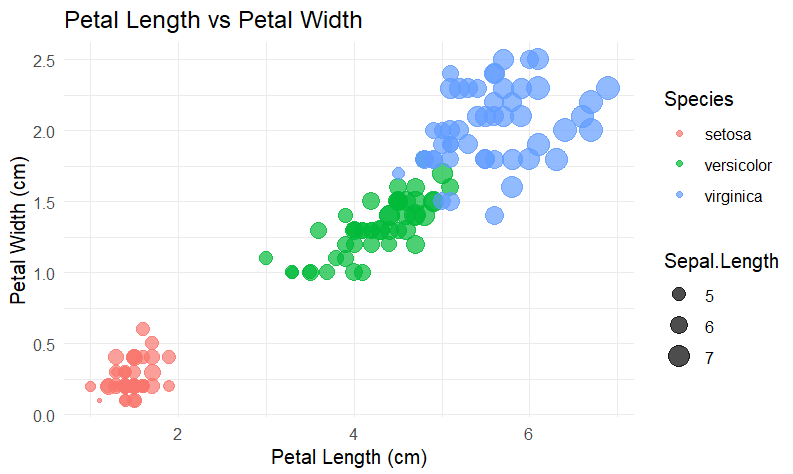
    Using ggplot, I created a scatter plot visualization comparing petal length vs. petal width. The points are color coded by species, and the point side correlated with sepal length. 
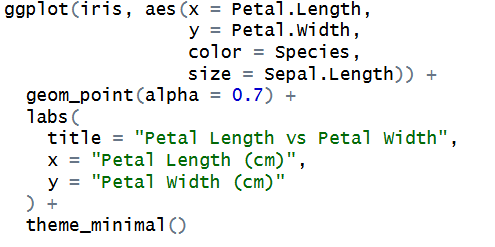
    For my multivariate graph, I used the iris dataset because it comes built into RStudio, and I have been using the mtcars dataset a lot lately, so I wanted to switch it up and try something different. My graph compares petal length, petal width, sepal length, and the 3 different species of flowers. One thing I noticed was that Setosa flowers have the smallest petals on average, Versicolor flowers are a little larger, and Virginica flowers have the largest petals on average. The graph also shows that flowers with longer petals tend to have wider petals as well. I think using a multivariate graph was effective for this dataset because it allowed me to compare multiple variables at once instead of having to make separate graphs for each one. Using different colors for the species and different point sizes for sepal length made it easier to see patterns and differences between the flowers without making the graph too confusing.

    Using different colors for the species creates a contrast that makes it very easy to tell which data points belong to which species of flower. For instance, we can clearly see that the Setosa flowers have a much smaller petal size on average, while Versicolor is larger, but Virginica has the largest petal size on average out of all 3. Proximity was used by how the data points are grouped together based on their petal length and width. Flowers with similar measurements are closer together, which makes it easier to see the similarities and differences between the species. The colors also help connect the points that belong to the same species even if they aren’t right next to each other.  The different colors and point sizes help keep the graph visually balanced, while the labels and legend make everything look more organized and easier to follow.

  • Assignment #8: Input/Output, String Manipulation, and the plyr Package

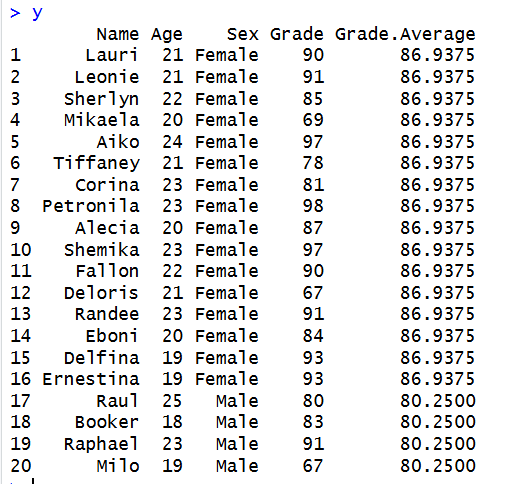
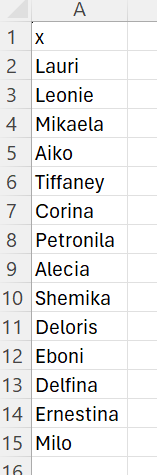
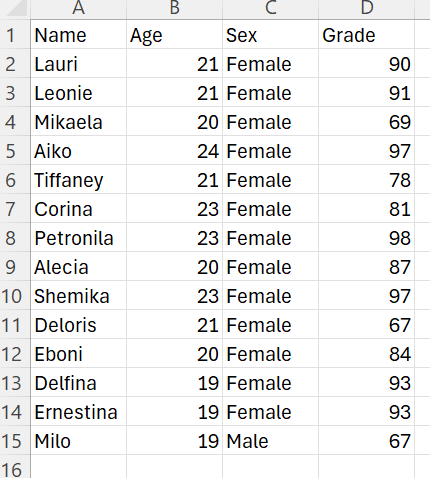
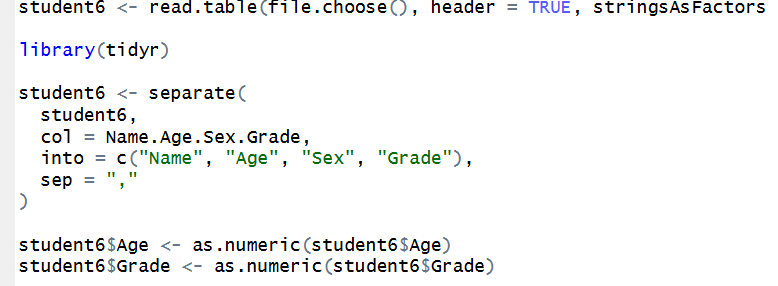
    To begin this assignment, I download and then upload the provided dataset into RStudio. Then, I separate the rows and convert rows Age and Grade into numeric data. 

    Then, using the plyr package and dpply, we can compute the mean of Grade by Sex.

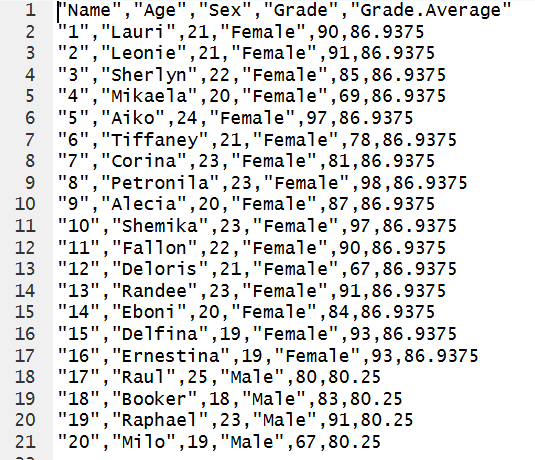
    Then, we write the grouped means to a text file:

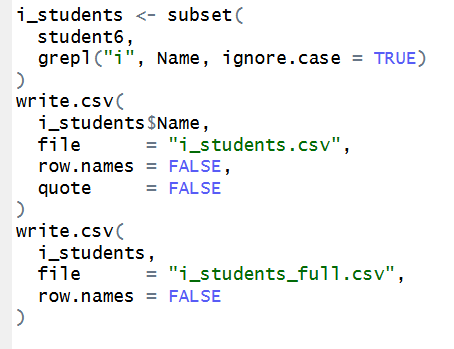
    Finally, we will filter our data, to create a subset of data with students whose name contains an “i”. Then, save as a csv with just the students names, and then one with their full data (including Age, Sex, and Grade).

    GitHub link here.

  • Module # 8 Correlation Analysis and ggplot2

    I will be using Rs built in dataset mtcars in order to explore relationships between variables using correlation or regression analysis and visualize them using ggplot2.

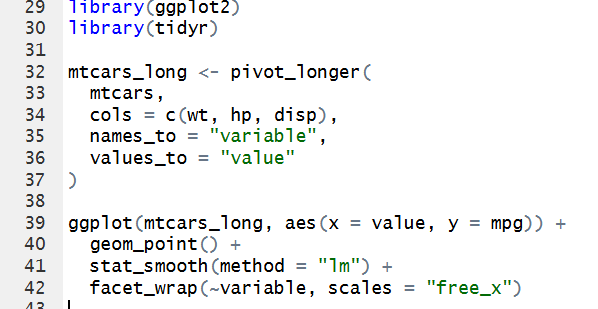
    I will use cor() to compute correlation matrices,  lm() for linear regression models, and ggplot2 for visualizations with geom_point() for scatter plots, stat_smooth(method = "lm") to add regression lines, and  facet_wrap() or gridExtra to arrange multiple plots.

    Correlation values range from -1 to +1. A value of +1 indicates a positive correlation, meaning that when one variable increases, the other tends to increase as well. A value of -1 indicates a negative correlation, meaning that when one variable increases, the other tends to decrease. A value of 0 indicates little or no linear relationship between the variables.

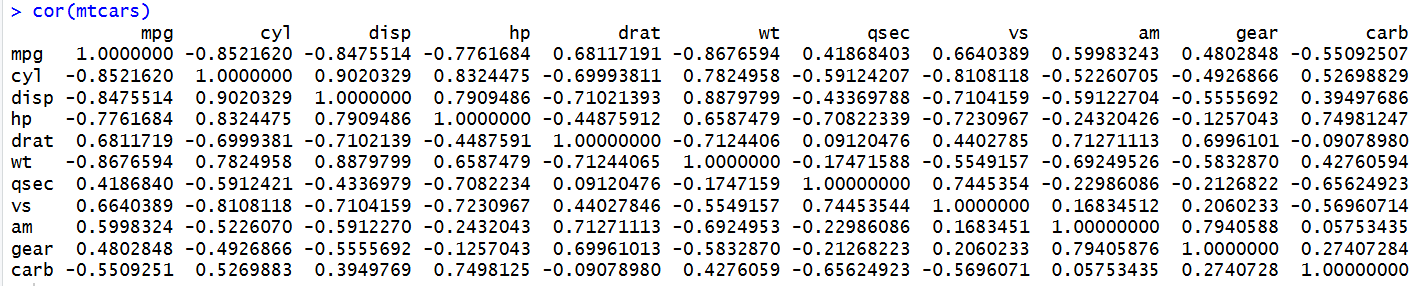
    The cor(mtcars) function calculates a correlation matrix to show the strength and direction of relationships between variables in the dataset. So for instance, the results show a strong negative correlation between  mpg and wt, meaning heavier cars tend to have lower fuel efficiency. There is also a strong negative correlation between mpg and hp, suggesting that cars with higher horsepower generally have lower fuel efficiency. 

    In R, lm() is used to create a linear regression model, which helps us understand relationships between variables and predict an outcome based on one or more predictors.

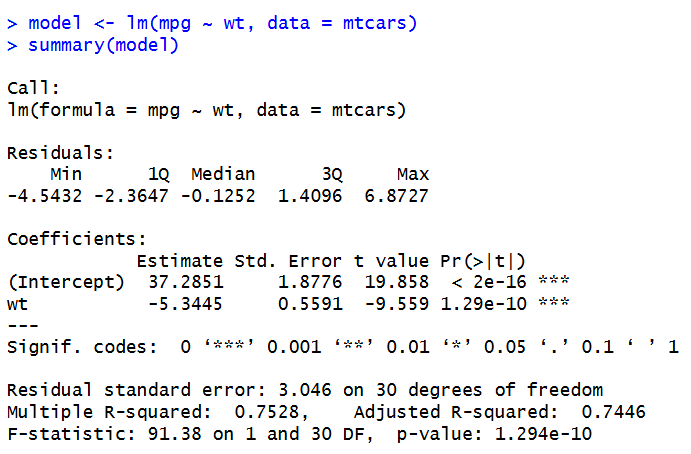
    We can look at the relationship between mpg and wt further:

    The linear regression model shows a negative relationship between car weight and fuel efficiency. The weight coefficient is approximately -5.344, meaning that for every increase of 1,000 pounds in car weight, fuel efficiency is predicted to decrease by approximately 5.34 miles per gallon. The intercept is approximately 37.285, meaning the predicted MPG when car weight is zero. The model has an R squared value of approximately 0.753, meaning that car weight explains around 75.3% of the variation in fuel efficiency in this dataset. It seems heavier cars generally have lower fuel efficiency.

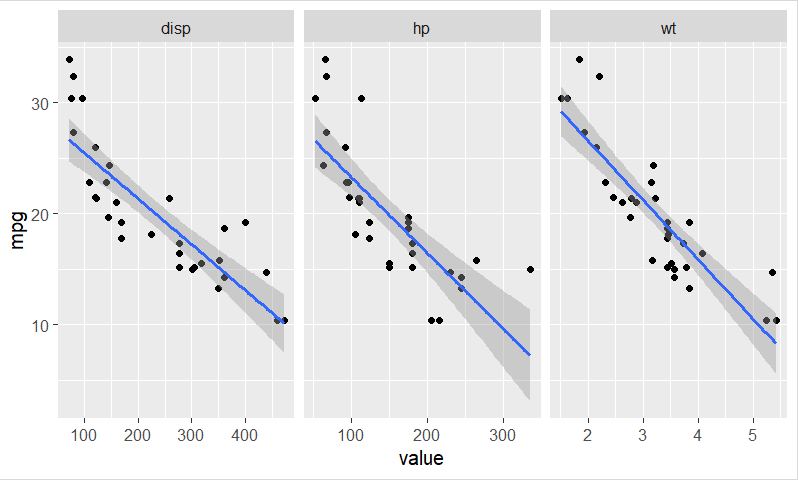
    I created three scatter plots with regression lines to show the relationships between MPG and weight, displacement, and horsepower. In all three , there is a negative relationship, so as these values increase, MPG generally decreases. Heavier cars and cars with higher horsepower or displacement tend to have lower fuel efficiency. Using a grid layout with facets made it easy to compare these characteristics because all three charts are displayed next to each other, making the patterns easier to identify. I also used a relatively neutral color scheme to keep the visuals simple and easy to read, although I kept the regression line blue because I felt it looked better than a gray or more neutral line. I agree with Few’s recommendations for keeping visualizations clear and avoiding unnecessary clutter. However, I think some flexibility is important because a color choice can improve the appearance of a graph while still making the information easy to understand.

  • Assignment #7: Exploring R’s Object Oriented Systems 

    I will be using Rs built in dataset mtcars for this assignment.

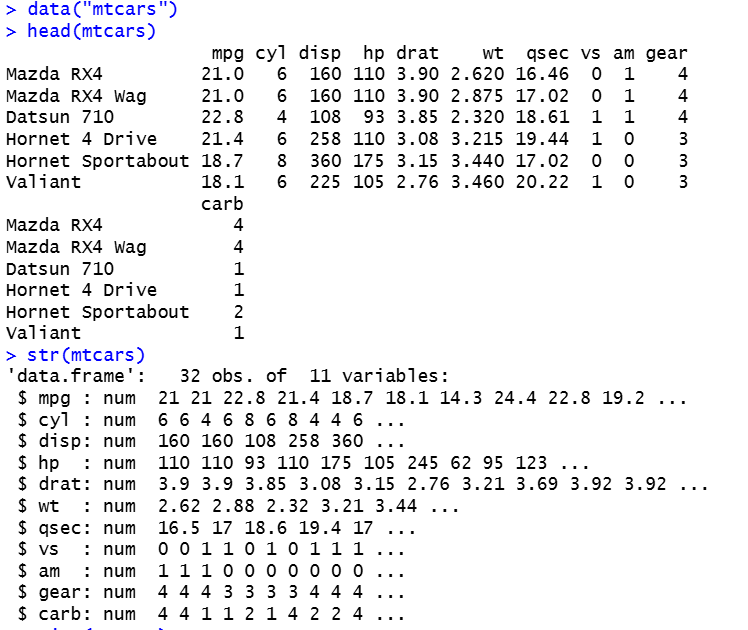
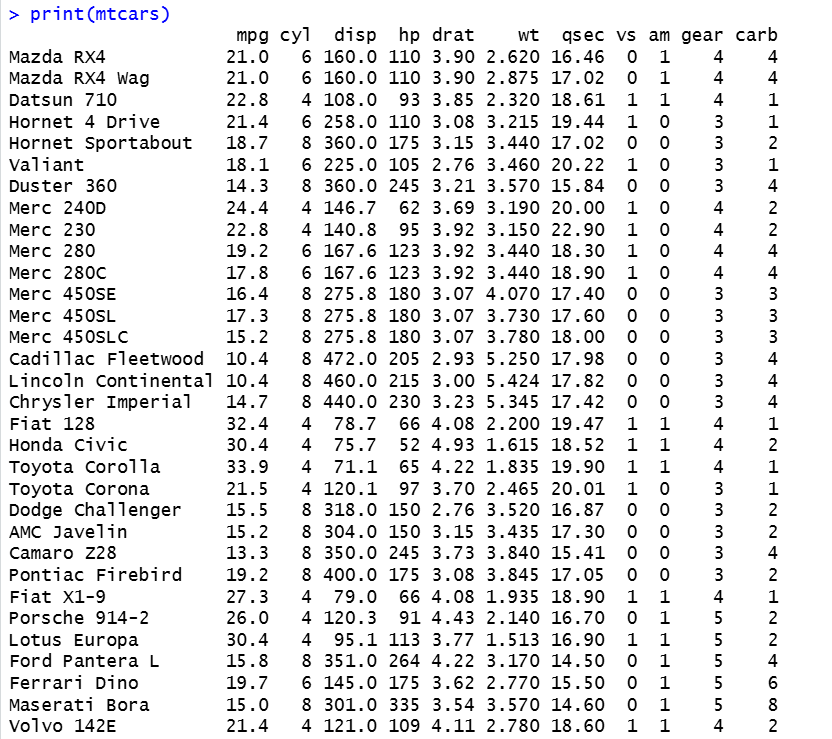
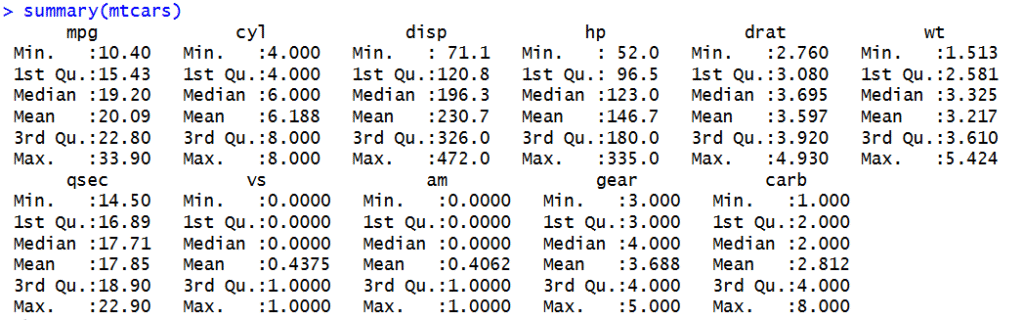
    To start, we can show the first few rows with head() and describe its structure with str(). Then, using generic functions print() and summary()we can further inspect the data.

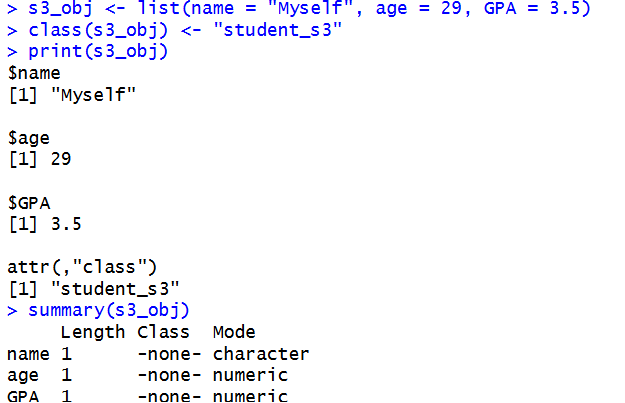
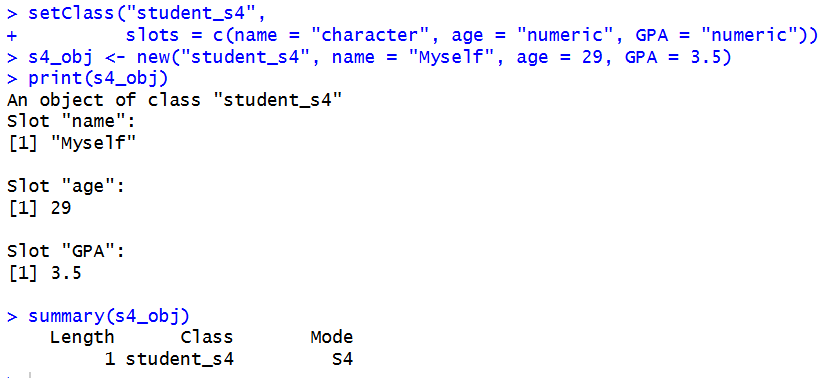
    Then, we will create 2 objects and inspect:

    You can tell whether an object uses S3 or S4 by using functions  class() and isS4(). The class() function tells us an object’s class, and isS4() checks whether it belongs to the S4 system. You can tell an object’s type by using typeof(), which returns its storage type. We can also use str() to examine its structure. Generic functions in R like these select a specific method based on an object’s class. The main difference between S3 and S4 is that S3 is simpler and more flexible, while S4 is more structured. S3 classes and methods are easier to create, but S4 requires you to define classes and methods using functions like setClass() and setMethod(). S4 also allows you to set specific data types for an object’s slots, which helps prevent errors.

    GitHub link

  • Module #7 Assignment: Visualizing Distributions in R

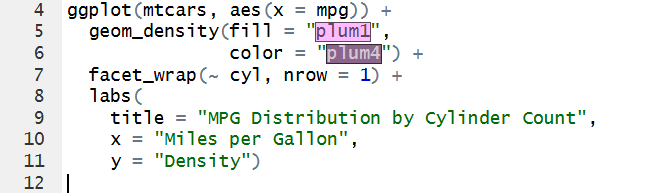
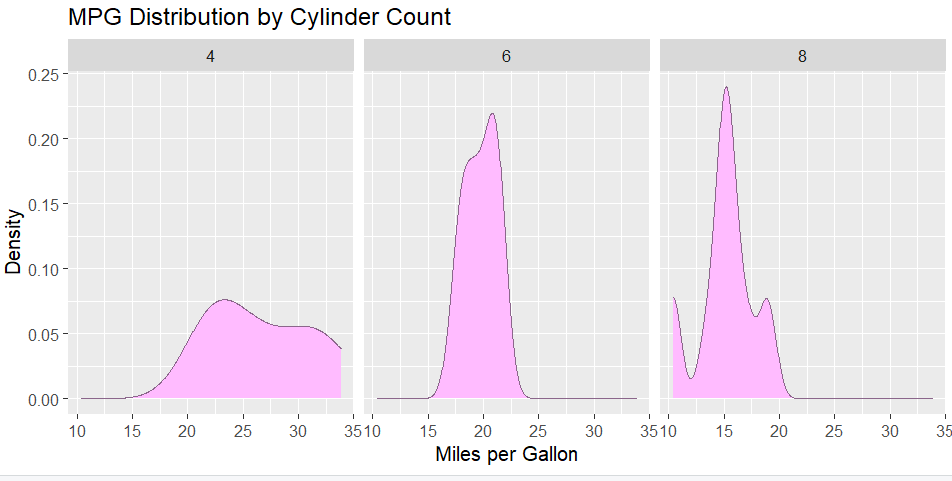
    Using RStudios built in dataset mtcars and ggplot2 , we will be creating  visualizations for distribution analysis. I decided to first create a density plot to see the distribution of miles per gallon across the number of cylinders (4, 6 or 8):

    This visualization shows the spread and distribution of cars MPG by number of cylinders. According to Few, distribution visualizations have 3 key characteristics, spread, center, and shape.

    4 cylinder:

    • Spread between 15-35 MPG
    • Center is a little less than 25 MPG
    • Shape is leaning towards the right and mid to higher values

    6 cylinder:

    • Spread between 15-25 MPG
    • Center is a little above 20
    • Bell shaped, with values close together

    8 cylinder:

    • Spread between 10-20 MPG
    • Center at 15 MPG
    • Has multi modal shape, with value concentrated mostly at 15 MPG, and then 10 and 20 MPG

    Looking at the graphs and these characteristics, we can notice patterns of:

    • cars with 4 cylinders tend to have mid to high MPG of around 20 and above
    • those with 6 cylinders stay in the mid range of 15-25 MPG
    • cars with 8 cylinders tend to have a lower MPG, of 20 and below

    It could be inferred that the more cylinders a car has, the more fuel is consumed. 

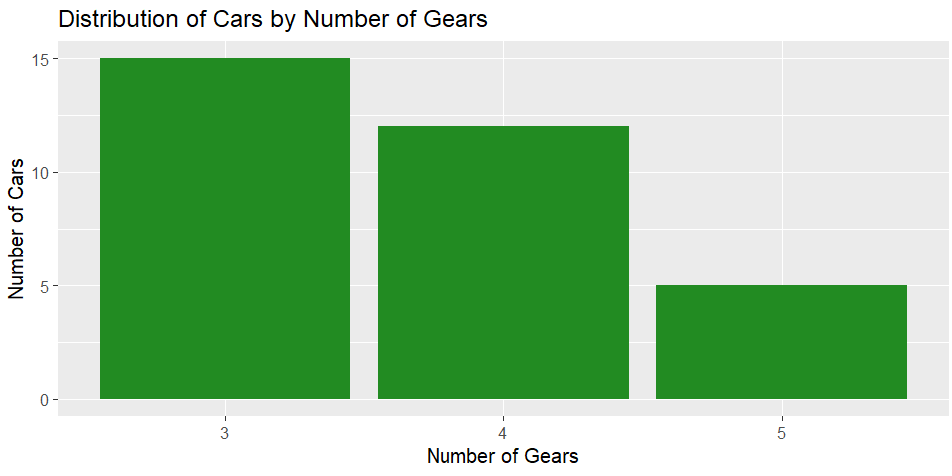
    For a bar plot for categorical distributions, we can look at 

    The graph is skewed to the left, showing a higher distribution of cars having 3 gears, and the number progressively lowering from 4 to 5. 

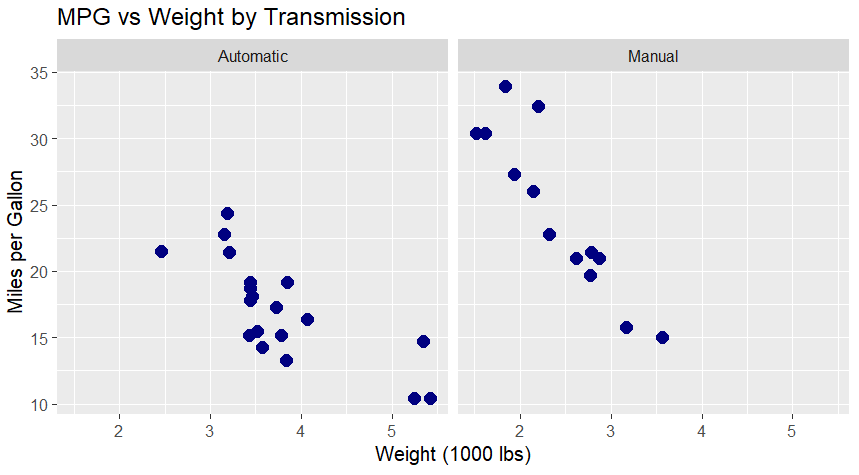
    Finally, for scatter plots, we can compare automatic vs manual transmission MPG by the cars weight:

    Just from looking at this visualization, we can see that manual cars in the dataset have higher MPG the lighter the car is. Automatic cars tend to have a lower MPG, but some automatic and manual cars have similar MPG values, so transmission type alone does not explain fuel efficiency.

    I agree with Few’s critique of how distributions are commonly presented in visual analytics. Using averages can hide important details and fail to show the full picture of the data. I also agree that box plots are not always the best way to visualize distributions because they can hide individual data points and other important patterns. Additionally, our eyes tend to focus on the box, which may lead us to assume that this is where the data is most concentrated, even when that may not be the case.

  • Module # 6 R and graphics with R

    For this assignment, we will be creating basic graphics using R Studio. I will be using R’s built in dataset mtcars.

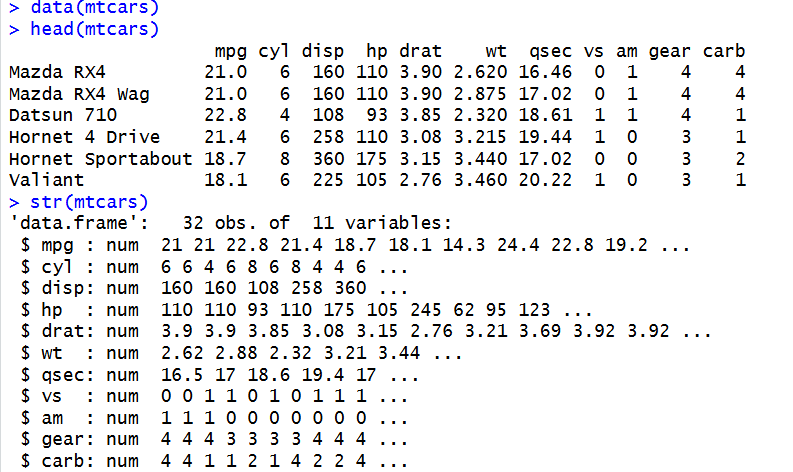
    To start, we will inspect the columns and format of the dataset, and check its structure:

    We can see that there are 11 variables and 32 observations. This means there are 32 car types in the dataset, and 11 different columns of measurements/attributes such as miles per gallon, number of cylinders, and engine displacement. 

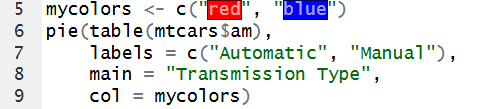
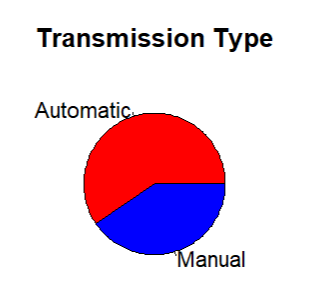
    For a pie chart visualization, I decided to look at transmission type. I will create a pie chart showing what percent of cars have an automatic transmission vs. a manual transmission:

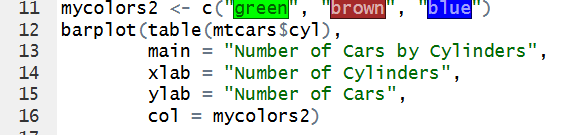
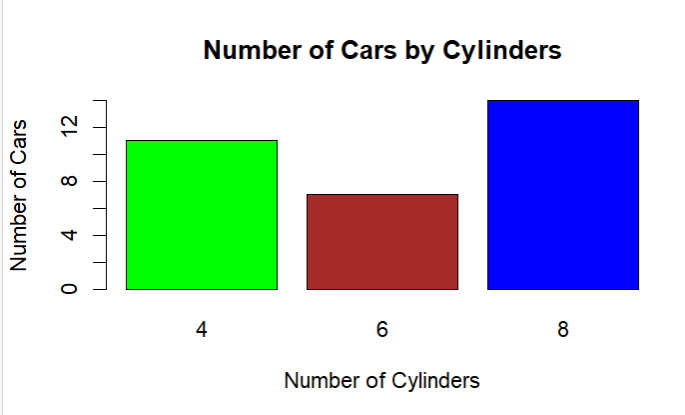
    For a bar chart, I compared the amount of cars with 4, 6, or 8 cylinders:

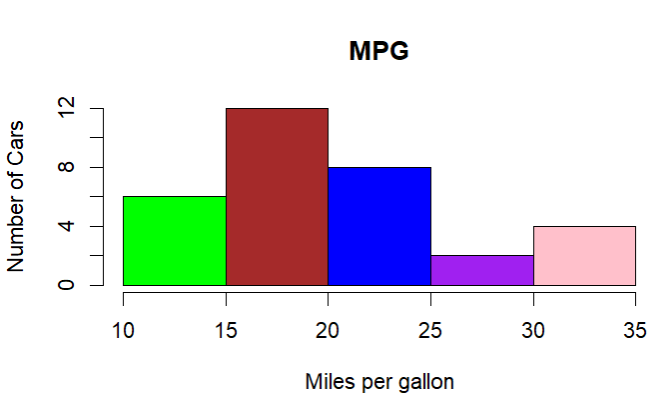
    For the histogram, I’ll compare mpg between cars:

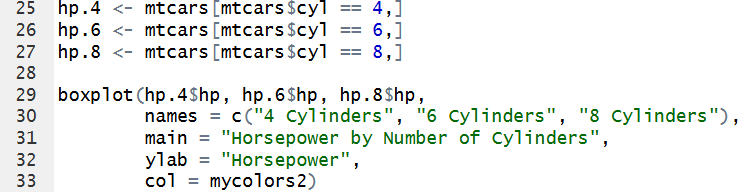
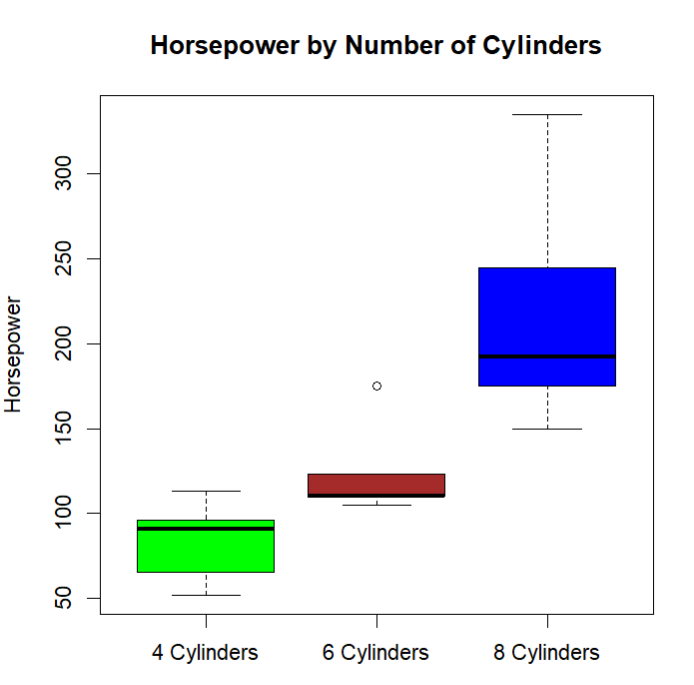
    Finally, the box plots will by showing the relationship between horsepower and number of cylinders:

    In the pie chart, we can easily understand from a glance that there are more automatic cars than manual. The bar chart also clearly shows that most of the cars have 8 cylinders, then 4, and the least amount of cars have 6. The histogram is easy to understand, and its obvious that most cars have a MPG between 15-20, and the least between 25-30. Finally, the box plots also make the trend that more cylinders = more horsepower clear.

    I think these simple visualizations do a good job of communicating the main ideas in the data and are useful for conducting a basic descriptive analysis. The visualizations make it easier to recognize patterns and compare different aspects of the mtcars dataset without having to look through the raw numbers. Some of my choices do not completely follow the recommendations discussed by the authors, however. For example, Yau explains that darker colors are typically used to represent greater values, while lighter colors represent lower values. In my visualizations, I just used different colors to separate categories rather than using color to represent the size of a value, so my charts do not follow this guideline. At the same time, my visualizations do follow the authors’ broader idea that graphs should make comparisons easier for the viewer. Having the box plots and other graphs displayed clearly allows the viewer to compare groups visually. I think the basic visualizations are appropriate for a simple descriptive analysis because they make the patterns and differences in the data easier to understand.


  • Assignment #6: Matrix Operations and Construction

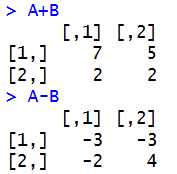
    To start, we will define matrices A and B, using matrix(). This function creates a dataset with rows and columns. Then compute addition and subtraction:

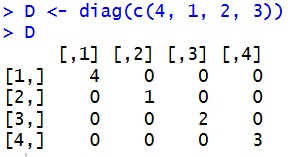
    Then, using diag() we will create a diagonal matrix.

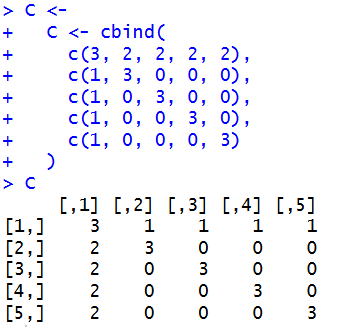
    Using  diag() with cbind(), which combines multiple matrices, data frames, or vectors together, we can construct a custom 5×5 matrix very simply.

  • Module #5 Assignment: Create Your Own Visualizations

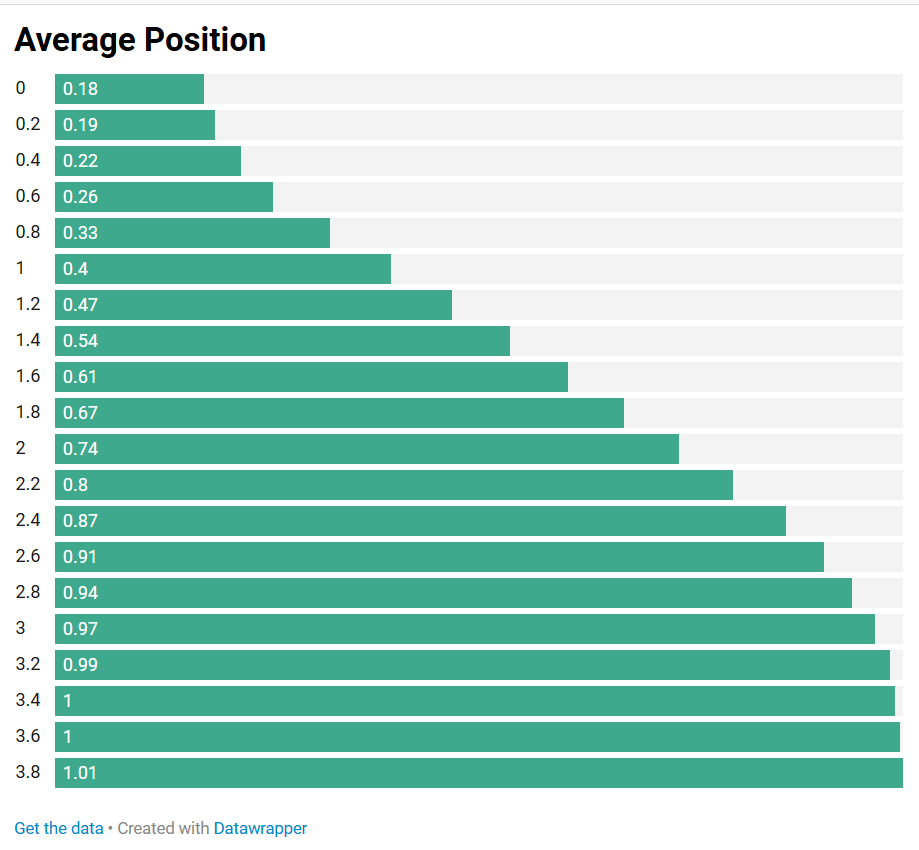
    For this assignment, we are asked to create a ranking chart and a part-to-whole chart, using a given dataset containing Average Position and Time. For the ranking chart, I created an ordered bar chart using Datawrapper:

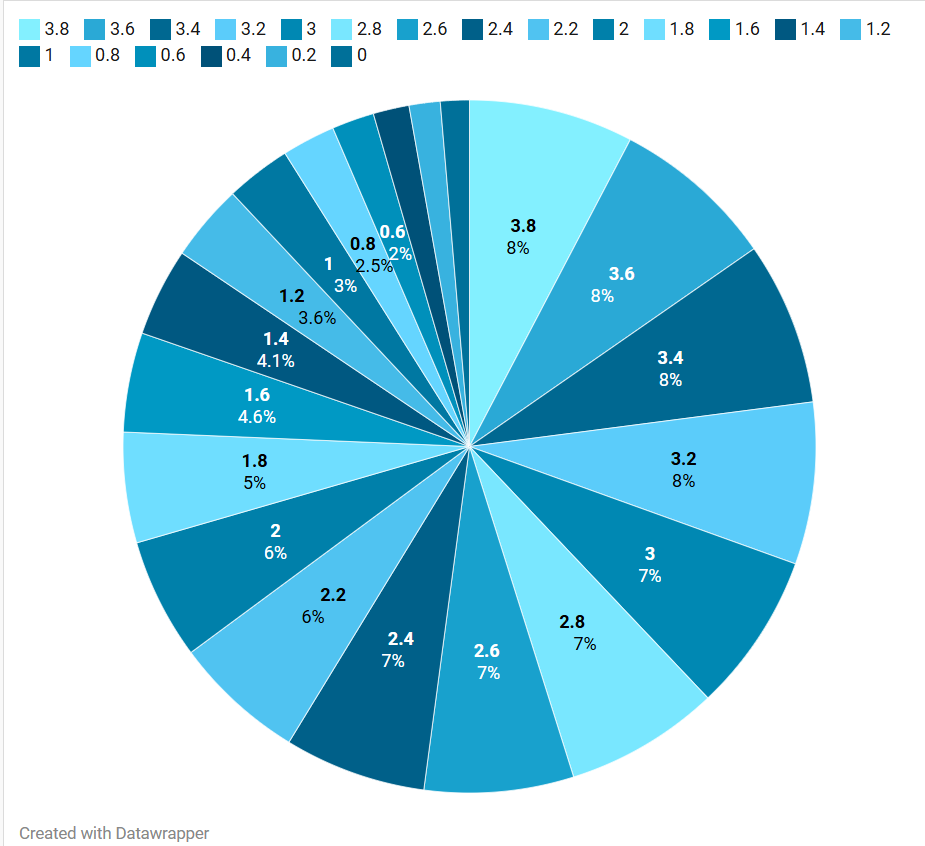
    Then, for the second chart, a part-to-whole visualization, I created a pie chart:

    The ranking chart shows the average position according to the time. Looking at this, we can see that the increase isn’t perfectly linear, starting off slow then increasing more rapidly before slowing down as it reaches 1. The ranking design helps highlight the progression of average position and makes it easy to compare the values across the different time points. This shows that average position generally increases over time, with the most noticeable changes occurring in the middle of the range.

    The second chart shows the average position by time. The pie chart shows the proportion of the total average position represented by each time point. This allows us to see which time points make up a larger or smaller share of the overall average position. However, a pie chart is not ideal for this data because the values represent position over a continuous period of time, rather than separate parts that naturally make up a whole.The Part-to-Whole design does provide another way of viewing the data by showing how each time point contributes to the overall total, which can highlight the time points with larger average positions. However, its main limitation is that it does not show the order or progression of time clearly.

    The ranking chart communicates the trend more clearly, while the part-to-whole chart provides a different perspective on the relative contribution of each time point. This demonstrates that part-to-whole can be useful for showing proportions, but it is less effective when the data represents a continuous trend rather than distinct parts of a whole.

  • Assignment #5: Matrix Algebra in R

    To start this assignment, we will create 2 matrices: 

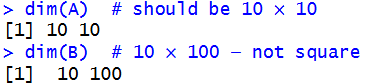
    Then, inspect to verify if they are square:

    We can see that A is square, and B is not. To handle errors for non-square or singular matrices, we can use solve() and det().The solve() function calculates the inverse of a matrix, given it is square and non-singular, and det()calculates the determinant of the square. 

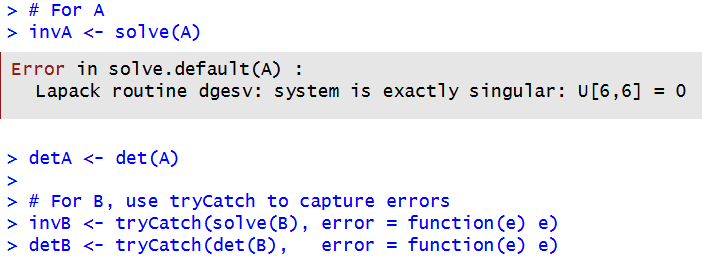
    Lets use them on A and B :

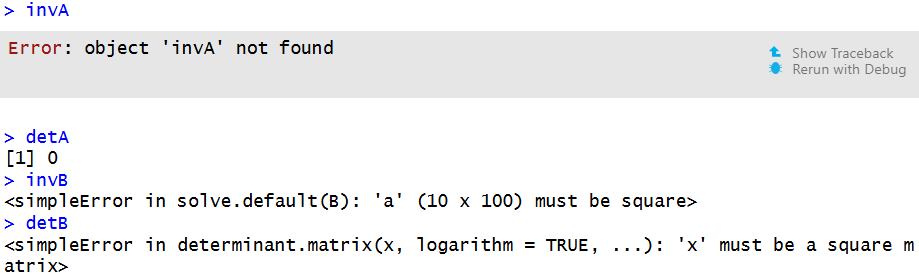
    When we try solve(A), we get an error message. This is because while A is square, it is singular. This means the inverse of the matrix cannot be calculated, this is also why det(A)returns 0. 

    For B, we used tryCatch to capture errors, and when we display them, there is also an error message. This is because B is not square, so it does not have an ordinary inverse. 

    A matrix must be square to have an ordinary inverse or determinant, but being square does not guarantee that an inverse exists. Matrix A is square but singular, which is why solve(A) cannot calculate an inverse and det(A) is 0. Matrix B is not square, so neither an ordinary inverse nor a determinant can be calculated. Since these matrices are relatively small, performance is not a major concern. However, with larger matrices or matrices that are close to being singular, numerical stability can become more important because small rounding errors can affect the results.

    GitHub: https://github.com/morgan8or/r-programming-assignments/blob/main/assignments/assignment-05/assignment_05.R

  • Assignment #4: Visualizing and Interpreting Hospital Patient Data

    In order to interpret relationships between patient vitals and physician assessments, we will create boxplots and histograms using R. 

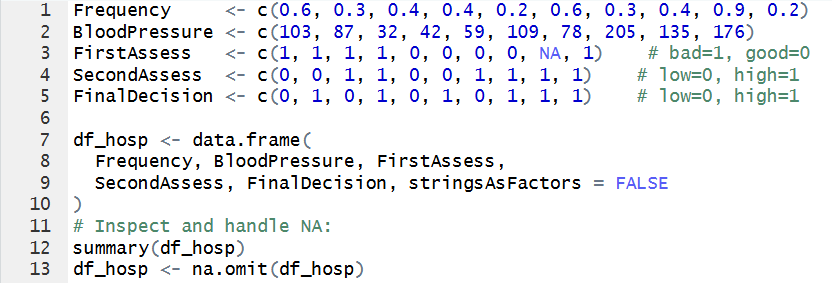
    To do this, we first need to define our vectors, add them to a dataset, convert categorical strings to numeric codes, and deal with NA’s:

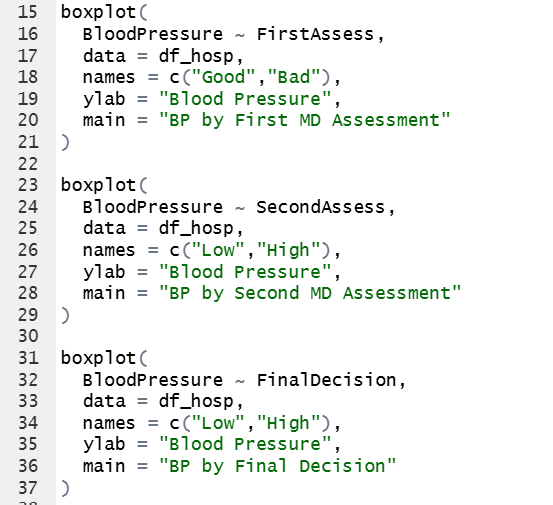
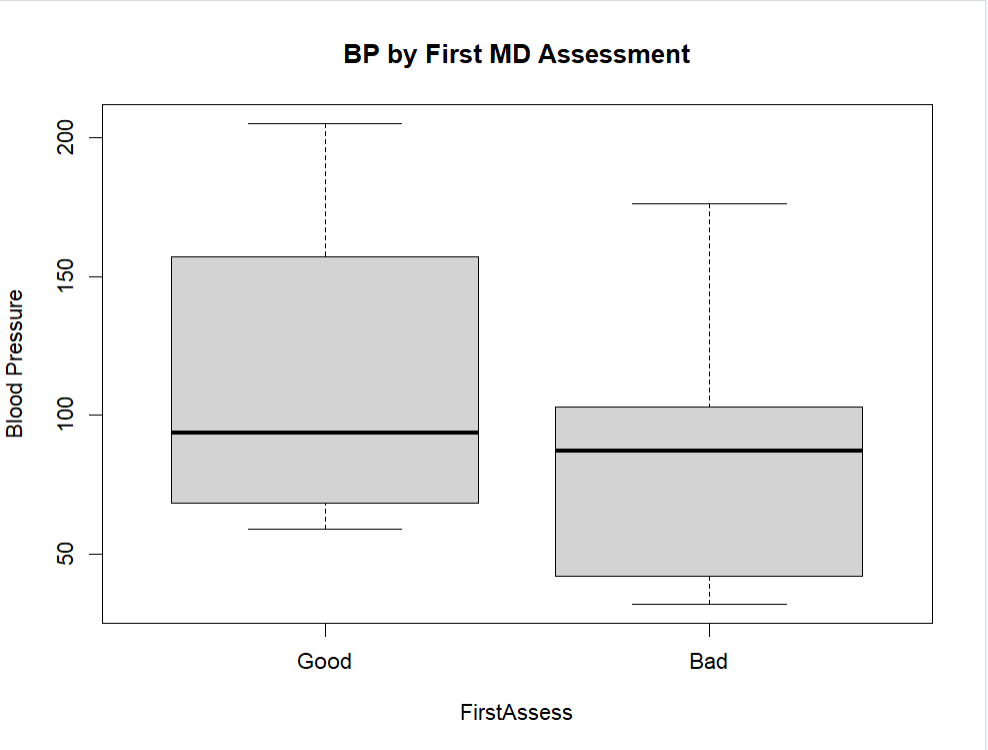
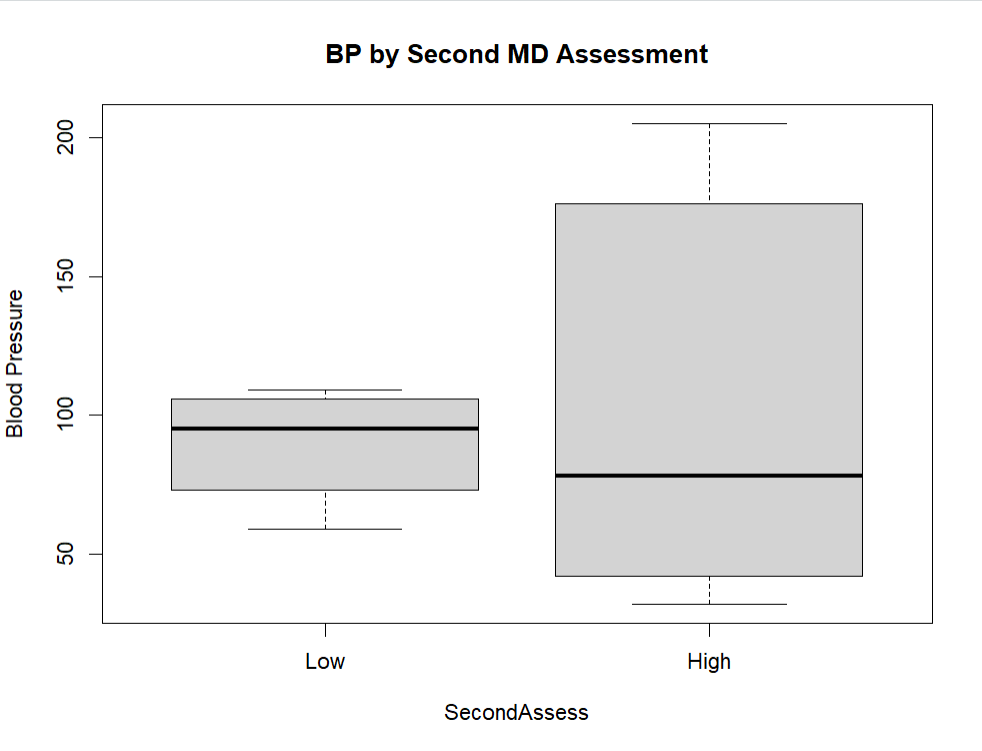
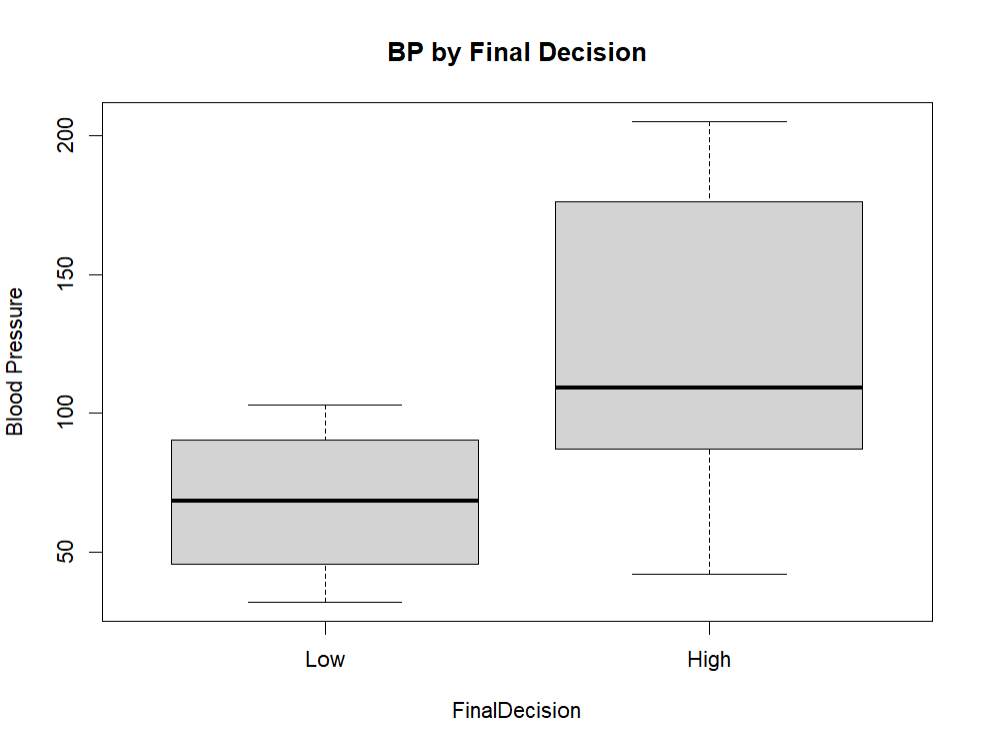
    Then, we create boxplots for blood pressure distributions by each assessment and final decision:

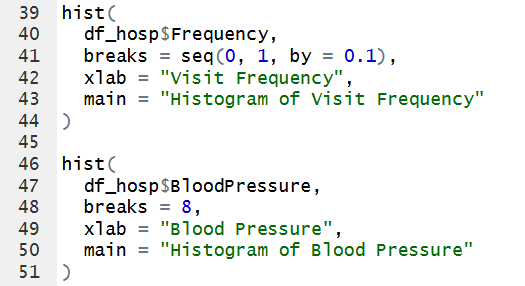
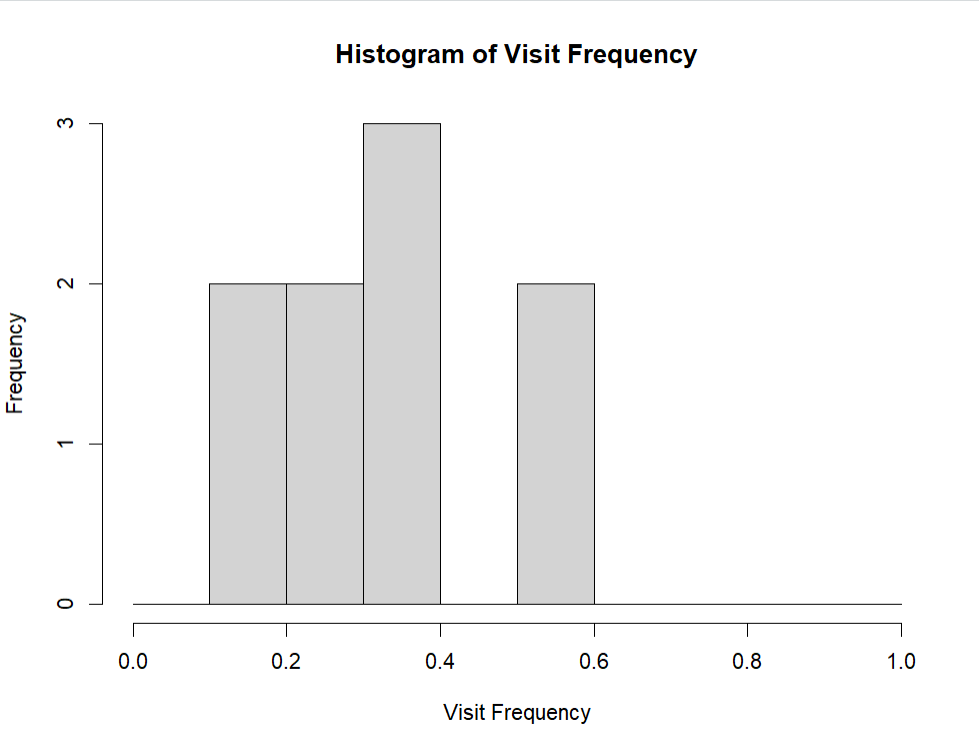
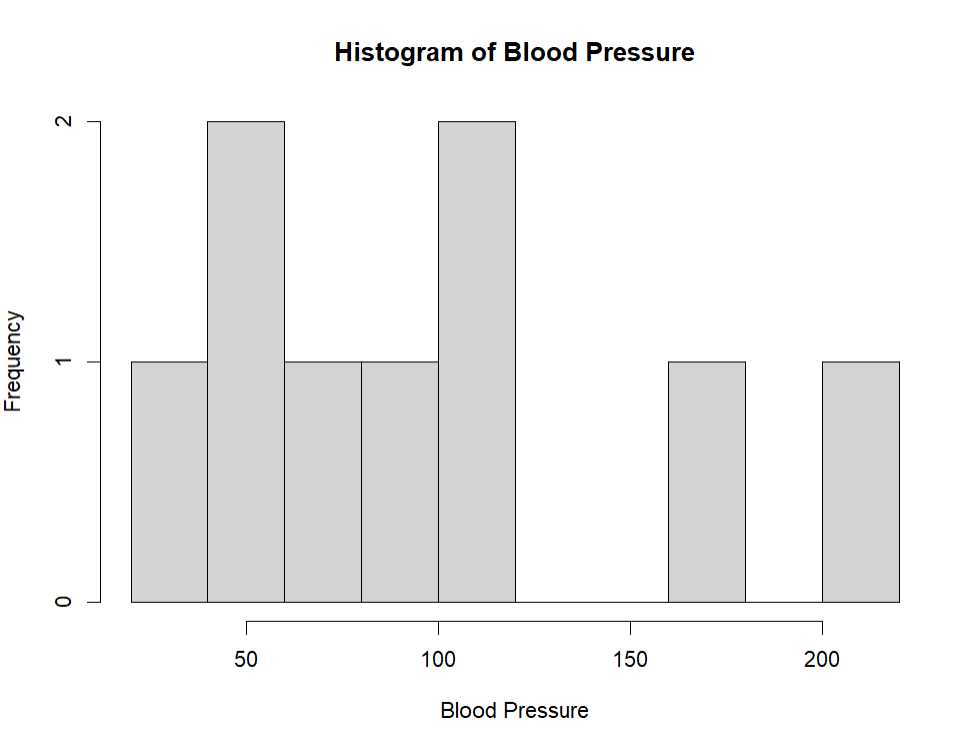
    We also create histograms for the distributions of frequency and blood pressure:

    Looking at the first assessment, the median blood pressure for the ‘good’ and ‘bad’ groups appears to be fairly similar. Additionally, the ‘good’ group seems to have slightly higher blood pressure values overall than the ‘bad’ group. For the second assessment, the ‘high’ group has a much wider range of blood pressure values, ranging from 32 to 205, compared with the ‘low’ group, which ranges from 42 to 103. Finally, the final decision seems most accurate, as the patients categorized as ‘high’ do seem to have higher blood pressure values overall compared with those categorized as ‘low’.

    Looking at the first histogram of visit frequency, there doesn’t seem t be any outliers, and the visit frequency ranges from 0.1 to 0.6, with the mode being 0.4. In the blood pressure histogram, most seem to be concentrated in between 32-109, with 2 outliers on the higher end at 176 and 205. 

    When dealing with the NA value, we just removed that patients entire data from our dataset. If it was still included, they may have caused outliers/skewing in the visualizations. For instance, their visit frequency was the highest, and would have been an outliers at 0.9. Additionally, their blood pressure was 135, which would have also caused the histogram to be skewed to the right alongside the other to higher outliers. 

    Overall, the data shows some differences in blood pressure levels among the patients, which could be important to consider in a clinical setting. However, the data we are using is made up, and should not be used in making clinical decisions. Out dataset is also small and limited, with only 10 patients. With a sample size this small, even if we were using real data, it should also not be used for medical judgement. Like we saw, just having a few outliers when the sample size is small could lead to a large skew in results. There is simply just not enough data to draw accurate conclusions. 

    GitHub link here.